How to Send Large Photo Files to Clients Without Cloud Drive Chaos
Send high resolution photos to clients with one simple link, automatic expiry, and an email reminder when it is time to follow up.

You have finished editing the photos. The client is waiting. Then email tells you the files are too large, and suddenly you are on Google searching for a solution.
This guide shows photographers and creative teams how to send high resolution photos with one secure link, without lowering the quality or constantly reminding clients to download them.
Quick Answer
Upload the photos to MoreTransfer, choose when the transfer should expire, and send the client one link. They can open it and download the original files without creating an account.
Before the transfer expires, MoreTransfer sends you a reminder email. If the client has not downloaded the photos yet, you can give them a nudge or extend the expiry while the transfer is still active.
Why Sending Photos Can Get Annoying
- Email is too small. Gmail limits attachments to 25 MB, so a folder of high-resolution photos will not get very far.
- Messaging apps are made for quick sharing. Photos can be compressed, mixed into a conversation, or downloaded one at a time.
- Clients get busy. They may open your message, plan to come back later, and forget before the transfer expires.
- Manual follow-ups are easy to miss. You should not have to keep checking the calendar just to ask, "Did you download the photos?"
The easier option is one link with a clear expiry date and a reminder before time runs out.
How to Send Large Photo Files to a Client
1. Put the photos in one clear folder
Keep the folder simple. Include the photos the client needs and remove test exports, duplicates, and unfinished versions.
A name like Maya-and-Jordan-Wedding-Photos is much friendlier than final-final-use-this-one.
If you are sending both web and print versions, use two clearly named folders so the client does not have to guess.
2. Upload the photos
Open MoreTransfer and add the folder or individual photos. The high-resolution files are sent as uploaded, so you do not need to shrink them just to fit inside an email.
If your internet connection drops during a large upload, resumable transfers can help you continue instead of starting again.
3. Choose an expiry date
Set an expiry that gives the client a comfortable amount of time to review or download the photos. If the photos are private, you can also add a password before sharing the link.
The expiry keeps the transfer from staying online forever, but it is not set in stone. If the client needs a little longer, you can extend an active transfer up to the limit included with your plan.
4. Send one link
Send the link with a short, friendly note:
Your high-resolution photos are ready. You can view and download them using the link below. The link expires on June 26, so please save the photos before then.
That is usually all the client needs. No new account, no folder permissions, and no technical instructions.
5. Let the expiry reminder help
Before the transfer expires, MoreTransfer send you and the clients an email reminder. If nobody has downloaded the photos yet, the email lets you know.
You extend the expiry to give them more time. It is a small feature, but it saves you from trying to remember every delivery date yourself.
No credit card required. Clients do not need an account.When This Works Well
- Sending a wedding or professional photoshoots.
- Delivering edited portraits or family photos.
- Sharing high-resolution product or property photos.
- Sending files to clients who are not comfortable with complicated sharing tools.
- Giving someone time to review photos before the link expires.
Mistakes to Avoid
- Sending unfinished versions. Keep the delivery folder clean and easy to understand.
- Using unclear file names. A simple project or client name is enough.
- Choosing an expiry that is too short. Give the client a realistic amount of time.
- Ignoring the reminder email. If the photos have not been downloaded, extend the expiry or send a quick reminder.
- Sending private photos without a password. Add one when the images need extra protection.
FAQ
What is the easiest way to send large photo files to clients?
Upload the photos to MoreTransfer and send one link. The client can open it and download the files without setting up an account.
Can I send high resolution photos without losing quality?
Yes. Upload the original exported files instead of shrinking them for email or sending them as compressed chat images.
What if my client forgets to download the photos?
MoreTransfer emails you before the transfer expires. If the client needs more time, you can extend the expiry while the transfer is still active, up to your plan limit.
Can clients review photos before downloading them?
Yes. When review is enabled for the transfer, clients can open the link and review the photos before downloading them.
Do clients need a MoreTransfer account?
No. They can open the link and download the photos without creating an account.
Final Thought
Sending photos should be the easy part. Upload them once, share one link, and let the expiry reminder tell you if the client still needs time.
When the photos are ready, send them with MoreTransfer.
The simple choice
Send your first transfer tonight
MoreTransfer makes it effortless to send large files fast with a clean, private transfer link. Built for creators, teams, and anyone who values simplicity and control.
No credit card required
More from the blog
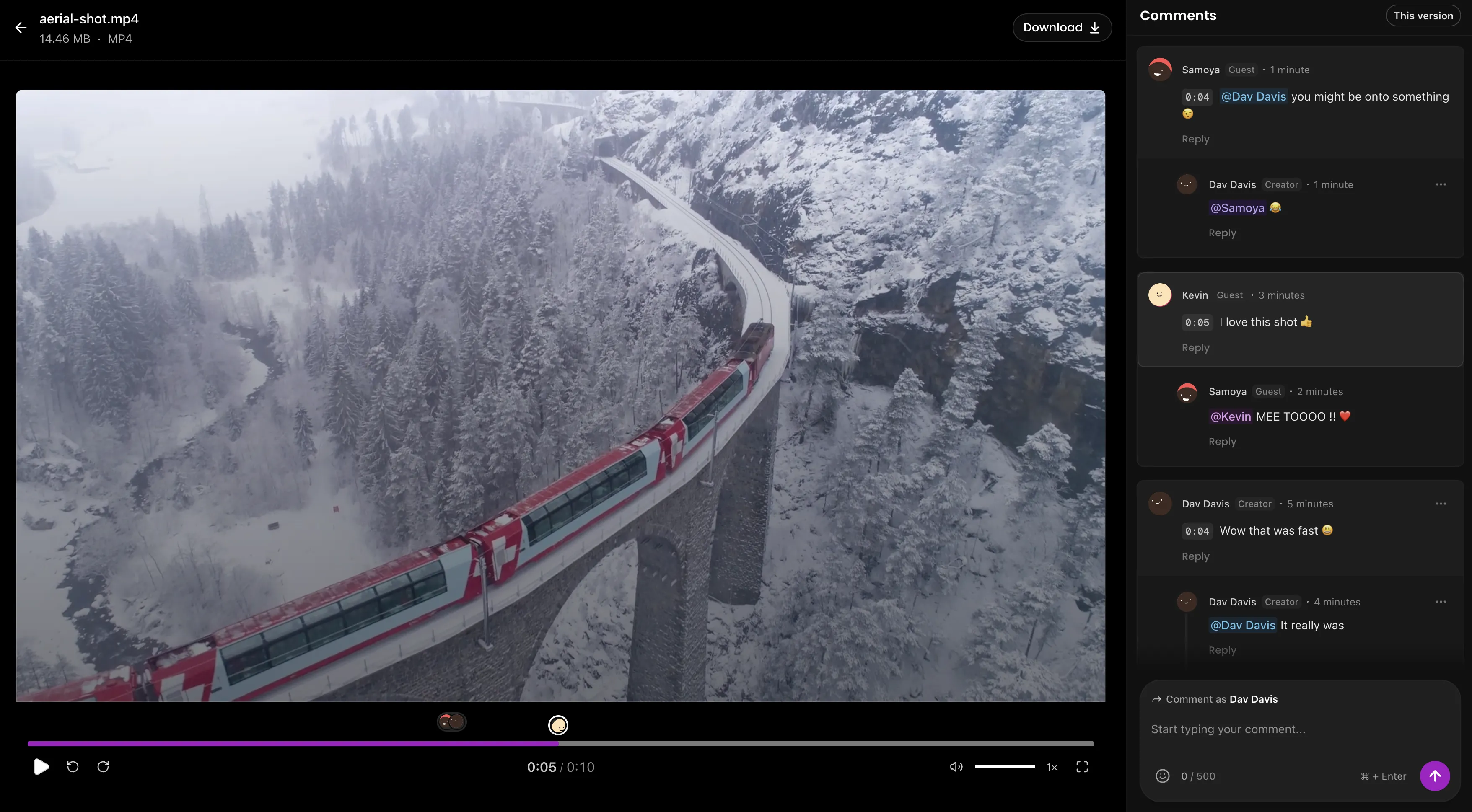
How to Send Large Video Files to Clients for Review
Send full quality video with one review link, keep client comments in one place, and make final delivery feel tidy instead of chaotic.
4 mins read
WeTransfer Alternative
A simple, honest comparison for anyone deciding between WeTransfer and MoreTransfer.
3 mins read
How to Send a 100GB File Securely with an Expiring Link
Need to send a 100GB file without losing control of it? Here is how to use expiring links, passwords, tracking and region choice.
5 mins read