How to Send a 100GB File Securely with an Expiring Link
Need to send a 100GB file without losing control of it? Here is how to use expiring links, passwords, tracking and region choice.
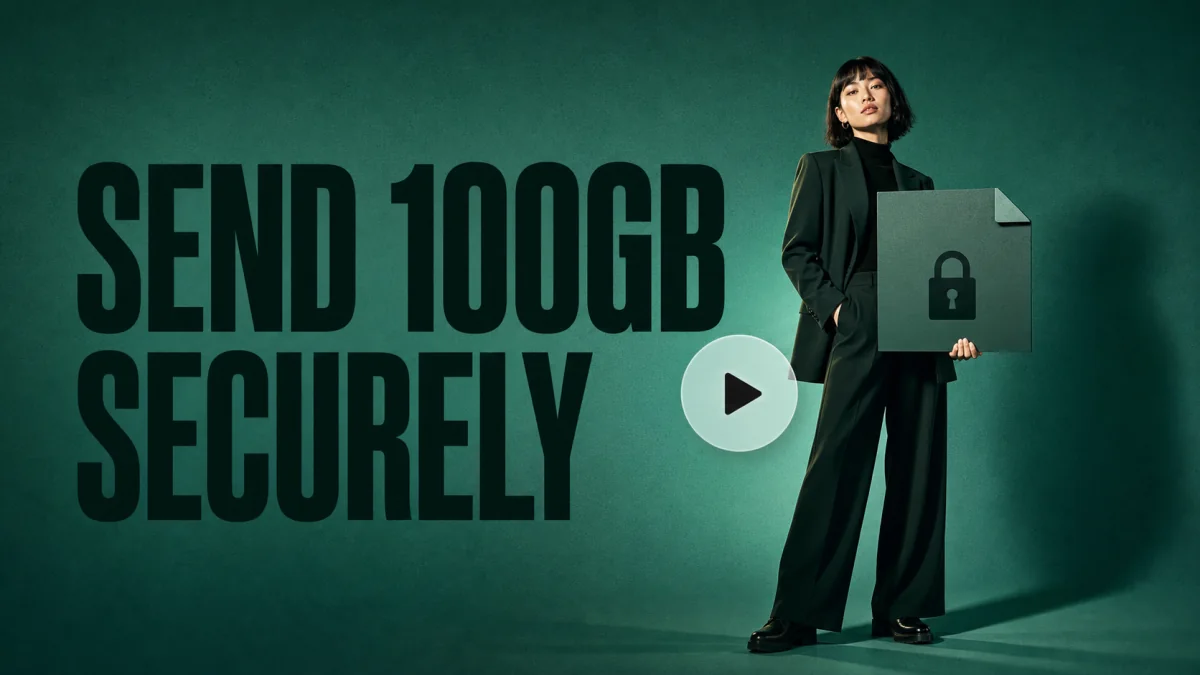
A guide for securely sending huge files with private, temporary links and a clean download experience.
This guide is for agencies, videographers, architects, developers, legal teams and finance teams that need to send huge files securely with a link that does not live forever.
Quick Answer
The best way to send a 100GB file securely is to use a large file transfer service that supports private links, expiry dates, password protection, regional storage, and download tracking.
With MoreTransfer, you can send huge files through a controlled link without making recipients deal with cloud-drive permissions or forced sign-ins.
How to Send a 100GB File Securely with MoreTransfer
Here is the practical workflow.
-
Open MoreTransfer
Go to MoreTransfer and start a new transfer. You can use it for large project files, folders, exports and client deliverables.
-
Upload the 100GB file
Drag in your file or folder. For huge transfers, avoid renaming or moving the file locally while the upload is in progress. Let the upload finish cleanly before closing your browser.
If your connection is unreliable, resumable transfer support helps avoid starting from zero after an interruption. See how resumable transfers work.
-
Set the link expiry
Choose how long the download link should remain active. Shorter expiry works well for sensitive files. Longer expiry can be useful when several stakeholders need time to download.
-
Add a password when needed
For legal, finance, architecture, software and unreleased creative work, password protection is usually worth the extra few seconds.
-
Choose your region
Pick the region that best fits the sender, recipient or compliance requirement. This keeps the transfer more predictable and transparent.
-
Send the secure link
Send the link to your recipient. They can download the file without wrestling with shared-drive permissions or installing another app just to receive one delivery.
-
Check download activity
Use download tracking to confirm the file was accessed. This is especially helpful when a deadline, handoff or client approval depends on the recipient receiving the file.
When This Method Works Best
Use a secure expiring link when you need to send something huge and controlled, not just "some file."
- Videographers delivering 100GB raw footage, final exports or project archives.
- Agencies sending campaign assets, brand libraries or production files to clients.
- Architects sharing CAD, BIM, render packages or planning documents.
- Developers sending database exports, builds, logs or datasets.
- Legal teams sharing evidence bundles, discovery files or signed document sets.
- Finance teams sending reports, audit material or board packs.
- Consultants sharing large client deliverables without inviting people into their internal drive.
The common thread: the recipient needs the file, but they do not need permanent access to your storage system.
Why Expiring Links Matter
An expiring link limits how long someone can access your file. That matters when you are sending client work, contracts, source code, financial records, legal documents, raw footage or internal plans.
IBM’s 2025 Cost of a Data Breach Report puts the global average cost of a data breach at $4.4 million. Not every risk comes from a dramatic break-in. Forgotten files, old links and poor retention habits can also create exposure over time.
A download link that still works months after a project ends is one more open door. The FTC’s Start with Security guide puts it simply: keep only what you need, dispose of what you do not, and remember that “No one can steal what you don’t have.”
For file transfers, expiry and automatic deletion put that principle into practice. The link works while the recipient needs it, then the window closes and the files are removed.
An expiry date helps you:
- Reduce access after a project handoff is complete.
- Avoid old links being reused months later.
- Keep sensitive files from hanging around longer than needed.
- Give clients a clear download window.
- Reduce exposure if an inbox, chat account or old project system is compromised later.
For a 100GB transfer, expiry is not a small detail. It helps make sure the delivery window closes when the work is done.
Add Password Protection for Extra Control
Password protection gives you a second layer of control. Even if a link is forwarded to the wrong person, the file is not automatically open to anyone who has the URL.
This is especially useful when you are sending:
- Legal documents or case files.
- Financial reports, audits or board materials.
- Software builds, database exports or source archives.
- Architecture drawings, CAD files or planning documents.
- Unreleased campaign assets, video cuts or product material.
Best practice: send the download link in one channel and the password in another. For example, email the link and send the password in Slack, Teams, SMS or your client portal.
Track Downloads So You Know It Arrived
For big, controlled transfers, "I sent it" is only half the story. You also need to know whether the recipient actually downloaded it.
Download tracking helps when:
- A client says they never received the file.
- A producer needs confirmation before archiving project files.
- A legal or finance team needs a basic delivery trail.
- An agency needs to know whether a stakeholder has picked up the final assets.
- A developer needs confirmation that a build, export or dataset was retrieved.
It also saves you from the classic follow-up: "Just checking if you got this?" A small sentence, somehow responsible for 40% of modern office despair.
Choose the Right Region
When you send a 100GB file, region choice affects both speed and compliance.
If you are in Europe and your recipient is also in Europe, choosing a European region can help keep the transfer closer to both sides. If your client has data residency requirements, region selection can also help you meet those expectations more clearly.
Region choice is useful for:
- European clients who care about GDPR and data residency.
- North American teams sending large files to nearby recipients.
- Agencies delivering client assets across regions.
- Legal, finance and enterprise teams with stricter internal policies.
- Anyone who wants fewer mystery routes for sensitive files.
MoreTransfer supports region-specific transfers, so you can choose where your files are stored and served from. You can learn more in our guide to region-specific transfers.
Mistakes to Avoid
- Leaving the link active forever. If the file is sensitive, set an expiry window.
- Skipping the password for confidential files. A private link is useful. A private link plus password is better for higher-risk transfers.
- Using personal cloud storage for client delivery. It can look messy and create permission confusion.
- Sending unclear file names. Use names like
ClientName_Final_Export_2026-06-11.zip, notfinal_final_REAL_thisone.zip. - Choosing a random region. Pick the region that makes sense for speed, privacy or client requirements.
FAQ
Can I send a 100GB file by email?
No, not as a normal attachment. Email providers usually limit attachments to a tiny fraction of 100GB, so you need a transfer link or cloud-based delivery method.
What is the most secure way to send a 100GB file?
Use a private transfer link with encryption in transit and at rest, set an expiry date, add password protection for sensitive files, and track downloads. For regulated or client-sensitive work, choose a storage region that matches your requirements.
Why should I use an expiring link?
An expiring link limits access after the download window closes. It helps reduce long-term exposure when files contain client work, financial information, legal material, source code or unreleased creative assets.
Should I password-protect a large file transfer?
Yes, if the file is confidential, client-sensitive or valuable. Password protection adds another check before someone can access the download.
Can recipients download without creating an account?
With MoreTransfer, recipients can access the download link without being pulled into a complicated shared-drive setup. That keeps delivery simpler for clients, vendors and non-technical recipients.
Final Thought
A 100GB file needs more than a random link. It needs a clean workflow: upload once, set expiry, add a password when needed, choose the right region, send the link and confirm the download.
If you need to send a huge file securely, create a secure transfer link with MoreTransfer.
The simple choice
Send your first transfer tonight
MoreTransfer makes it effortless to send large files fast with a clean, private transfer link. Built for creators, teams, and anyone who values simplicity and control.
No credit card required
More from the blog
How to Send Large Photo Files to Clients Without Cloud Drive Chaos
Send high resolution photos to clients with one simple link, automatic expiry, and an email reminder when it is time to follow up.
4 mins read
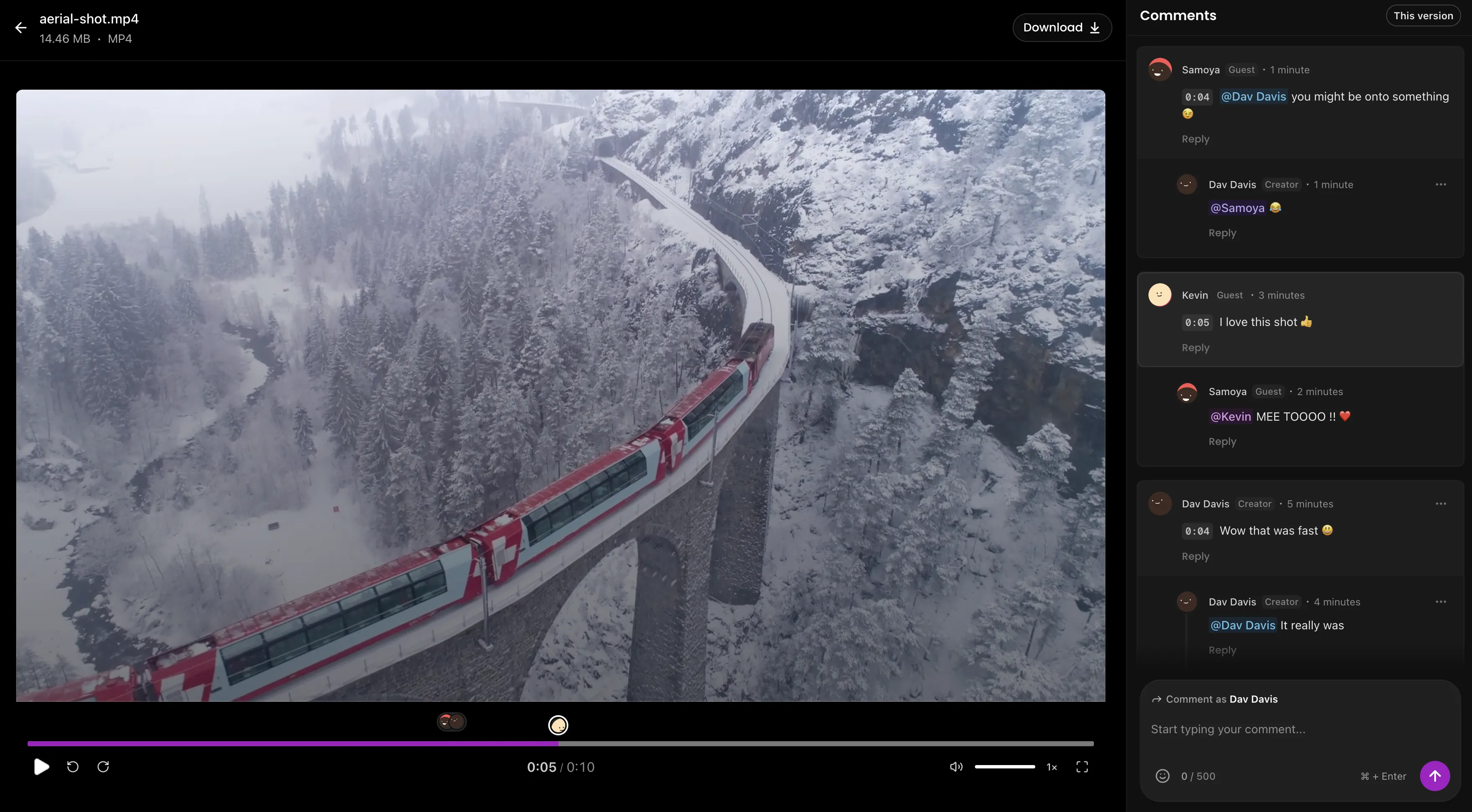
How to Send Large Video Files to Clients for Review
Send full quality video with one review link, keep client comments in one place, and make final delivery feel tidy instead of chaotic.
4 mins read

7 Video Feedback Tools for Client Review in 2026
A practical comparison of 7 video feedback tools for editors, agencies, creators and teams that need clearer comments, fewer review loops, and easier client approvals.
6 mins read