How to Transfer Large Videos from iPhone to Windows PC (2026 Guide)
AirDrop, USB cables and cloud storage all struggle with large iPhone-to-PC transfers. Here's how to send huge files from your iPhone to a Windows PC using MoreTransfer - no cables, apps, or size limits.
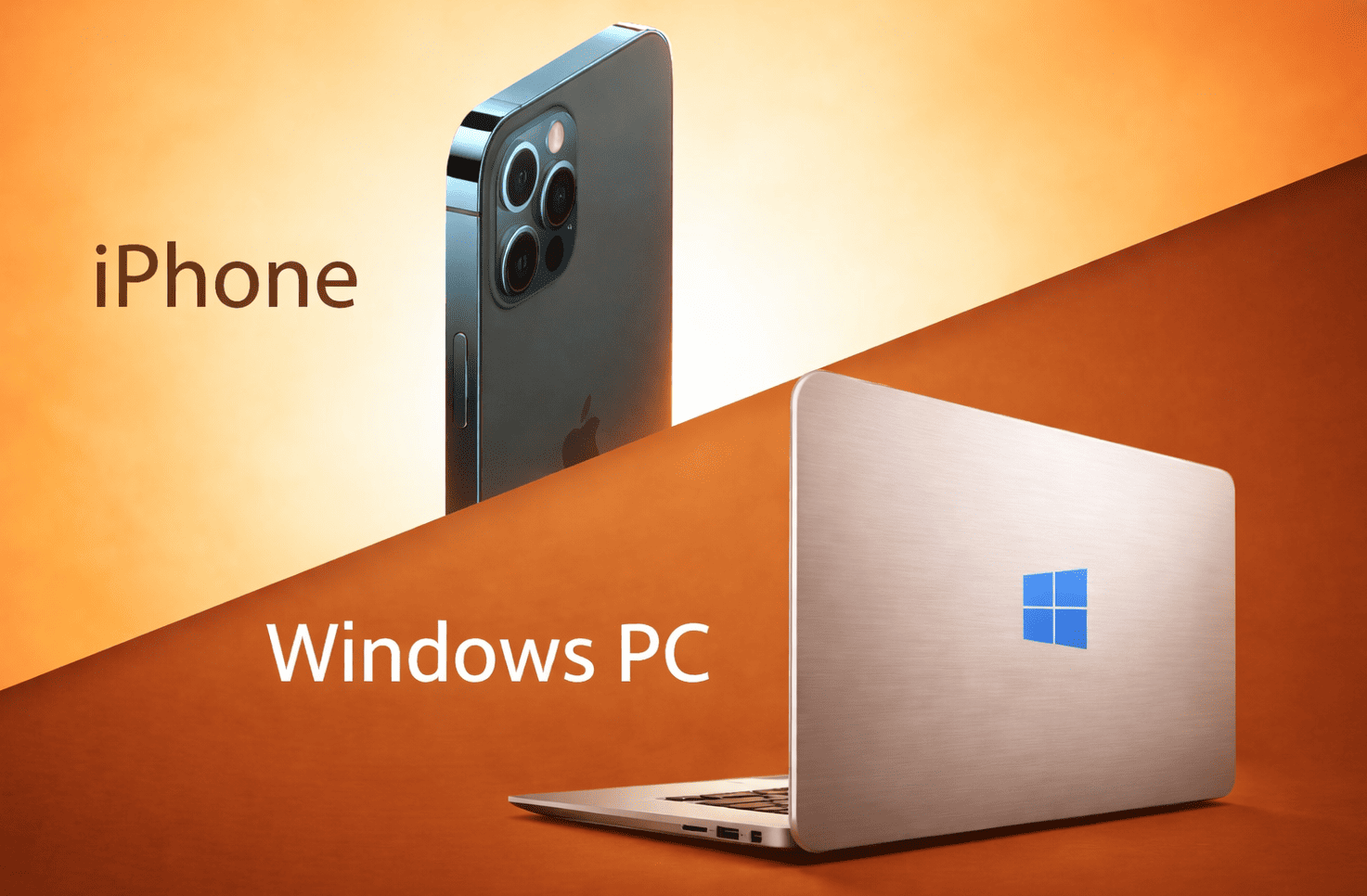
TL;DR - How to Send Large Files from iPhone to PC
The fastest way to transfer large videos from iPhone to Windows PC is MoreTransfer. Just open the website on your phone, upload and get a download link. No app, no cables, no file size limits, no compression.
Why the common methods don't work well:
- AirDrop - doesn't work with Windows at all
- USB cable - unreliable for large files, requires iTunes/drivers, transfers often stall
- Cloud storage (iCloud, Google Drive) - built for syncing, not transferring. Files linger in your storage, iCloud for Windows is buggy and "Optimize Storage" can prevent access to originals
- Email & messaging apps - file size caps (25 MB–4 GB) and automatic compression
Sending to another phone instead? Read our guide on sending long videos from iPhone to Android without compression.
Transferring a large file like a high-resolution video from your iPhone to a Windows PC can be frustrating. Many users ask
- "How do I send large videos from my iPhone to my PC?"
- or "How can I share big files between an iPhone and a Windows computer?"
especially as file sizes grow in 2026 with 4K/8K videos and high-res photos.
In this guide, we'll explore why common methods often fail to send large files and show you a better solution for sharing huge files from your mobile device without hassle.
Why Traditional Methods Struggle with Large iPhone-to-PC Transfers
1. AirDrop - Apple-Only (Not Compatible with PC)
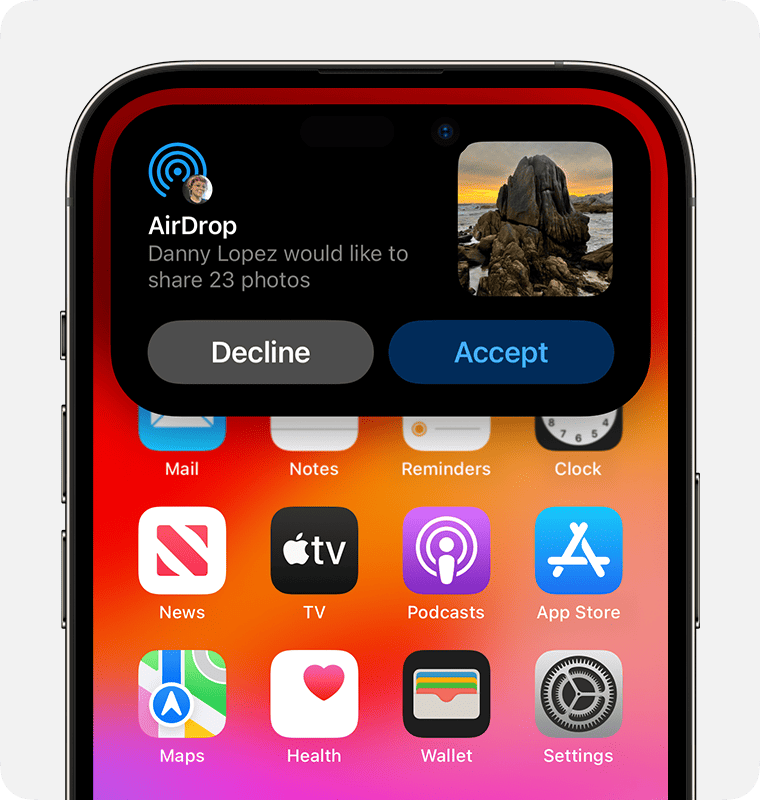
AirDrop is Apple's built-in wireless sharing tool that works great between Apple devices, but it doesn't help when you need to send something to a PC. You cannot send files from an iPhone to a Windows computer using AirDrop at all. This method is completely closed off to non-Apple devices - an iPhone can AirDrop to a Mac, but not to a Windows PC.
Even within Apple's ecosystem, AirDrop has trouble with very large files and only works at short range (Bluetooth and Wi-Fi must be enabled and the devices kept within ~10 meters). Trying to AirDrop a multi-gigabyte video can be unreliable or fail due to temporary storage limits.
Limitations:
- Apple-only - no support for Windows or Android devices
- Requires close proximity (≈10 m range)
- Can choke on huge files (5+ GB videos may not complete) due to device storage and transfer constraints
- Both devices need Bluetooth & Wi-Fi on and transfers can be slow for large media
2. Bluetooth - Not Supported (and Painfully Slow)
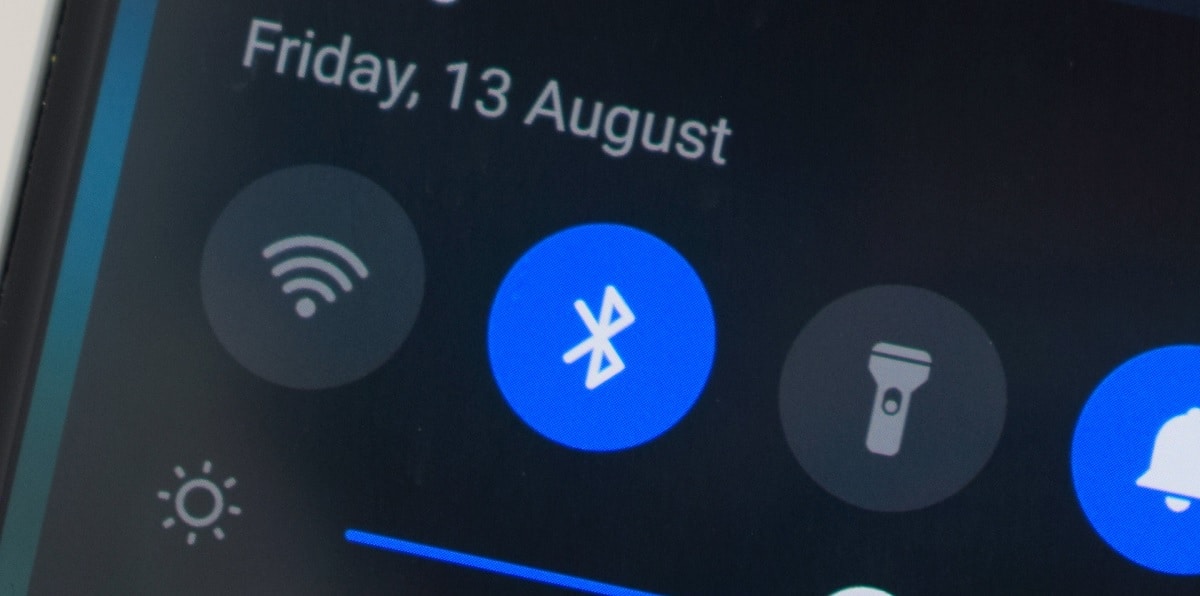
Standard Bluetooth file transfer is not a viable option for iPhone-to-PC. iPhones do not allow direct Bluetooth file sharing with PCs and even if they did, Bluetooth's speed is far too slow for large files. The transfer rate tops out around 2 Mbps, so sending even a 1 GB video could take over an hour (assuming the connection doesn't drop).
Limitations:
- Not supported by iOS for file transfers to a PC
- Extremely slow throughput (~2 Mb/s) - ~1 GB per hour under ideal conditions
- Requires devices to be near each other (~10 m range)
- Unreliable for large files - long transfers often drop or fail before completion
3. USB Cable (Lightning-to-PC) - Cumbersome for Huge Files
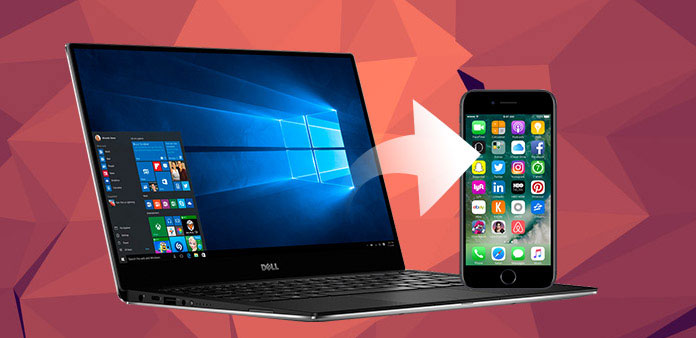
Using a Lightning-to-USB cable to copy files directly is an obvious approach. You can connect your iPhone to the PC and attempt to copy videos via Windows File Explorer or the Photos app. However, many users find that very large videos simply won't transfer easily this way.
Apple's own support documentation suggests installing iTunes (or the Apple Devices app) and using the Windows Photos import tool, but this often doesn't work for multi-GB files. In some cases, the video won't even appear in the DCIM folder unless you change a hidden setting on the iPhone (e.g. setting "Transfer to PC" to "Keep Originals" in the Photos settings to avoid conversion).
Real-world reports highlight the issues: one user trying to offload a 27 GB video from an iPhone found it "virtually impossible" - they didn't have enough iCloud space and when hooking the iPhone via USB, neither File Explorer nor the Windows Photos app would copy it.
Limitations:
- Requires a physical Lightning cable and proper drivers (iTunes or Apple Mobile Device support)
- Large videos may not show up or copy without special configuration (e.g. enabling "Keep Originals")
- Transfers of very large files can fail or stall - e.g. a 27 GB iPhone video could not be copied via Explorer
- Only works when iPhone and PC are physically connected; no remote or wireless convenience
- If the cable disconnects mid-transfer, you have to start over
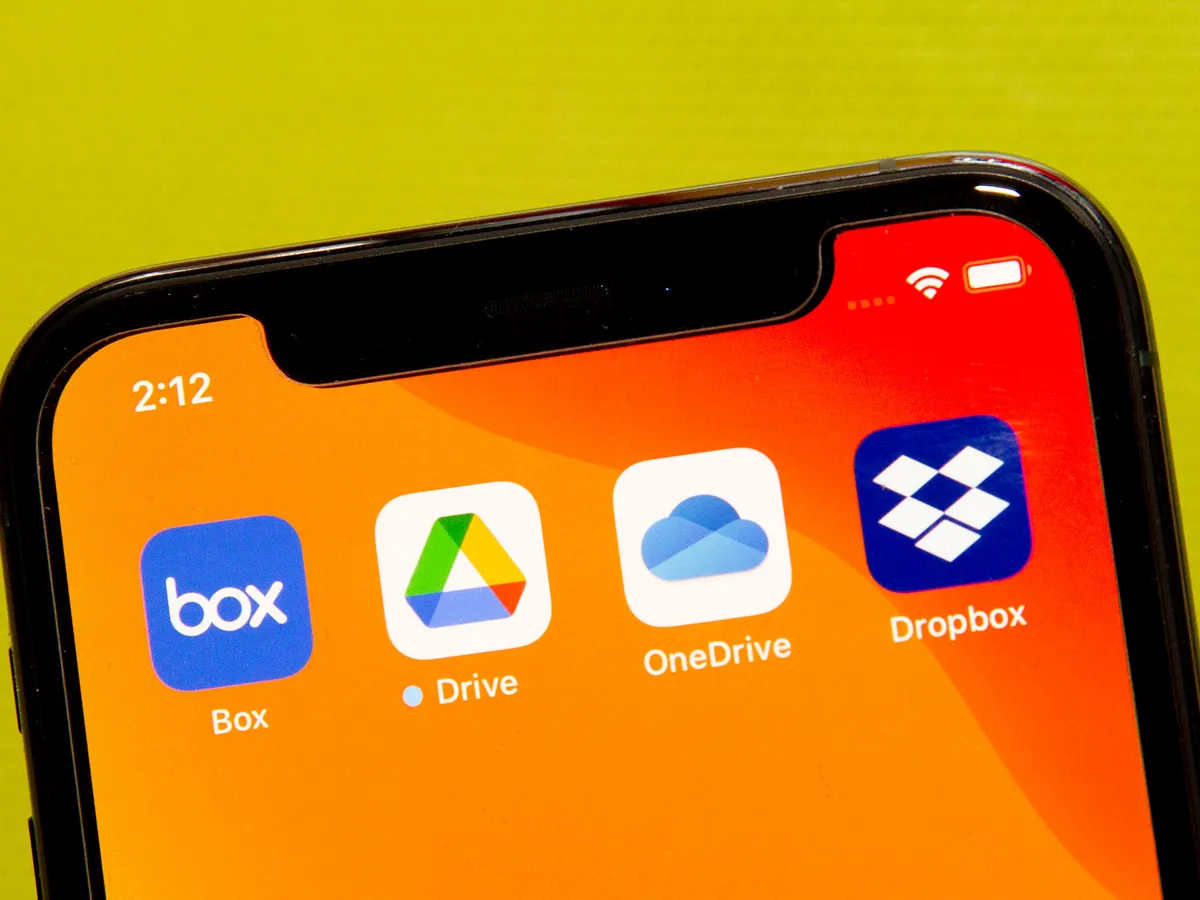
4. Cloud Storage (iCloud, Google Drive, Dropbox) - Built for Syncing, Not Transferring
Cloud storage seems like an obvious workaround: upload the file from your iPhone to iCloud or Google Drive, then download it on the PC. But cloud services are designed for syncing and storing files long-term - not for moving a large file from one device to another. That mismatch creates real friction:
- Account and app requirements everywhere
- You need to be signed in on both devices. iCloud for Windows is notoriously buggy as files often get stuck in a "downloading" state.
- Google Drive requires a Google account and navigating sharing permissions just to access your own file on another device.
- Your storage becomes a dumping ground:
- Unlike a transfer, cloud uploads are permanent until you manually delete them. That 10 GB video sits in your cloud eating up your quota and if you forget to remove it, it stays there forever.
- With iCloud, it may even start syncing across all your other Apple devices automatically.
- "Optimize Storage" creates a catch-22:
- Many iPhone users have "Optimize iPhone Storage" enabled, which replaces full-resolution originals with compressed thumbnails on the device.
- When you go to upload the file to a different cloud service (like Google Drive or Dropbox), you may first need to download the full original back to your phone - then re-upload it. It's a circular mess.
- Format and quality surprises:
- iCloud may store your photos and videos in HEIC/HEVC format.
- When you download them on a Windows PC, you might end up with files your PC can't open without installing extra codecs or the service silently converts them, changing quality or file size.
- Double the bandwidth, double the wait:
- You upload the full file from your iPhone, then download the full file again on your PC. That's 2x the data usage. On a mobile connection, uploading even 5 GB can be slow and expensive.
Limitations:
- Requires accounts, apps and sign-ins on both devices
- Files linger in your cloud indefinitely unless manually deleted
- iCloud for Windows is unreliable for large downloads
- "Optimize Storage" can prevent you from accessing the original file
- HEIC/HEVC format issues when downloading to Windows
- Uses 2x bandwidth (upload + download) for a single transfer
5. Messaging Apps & Email - Quick for Small Files, Useless for Big Ones
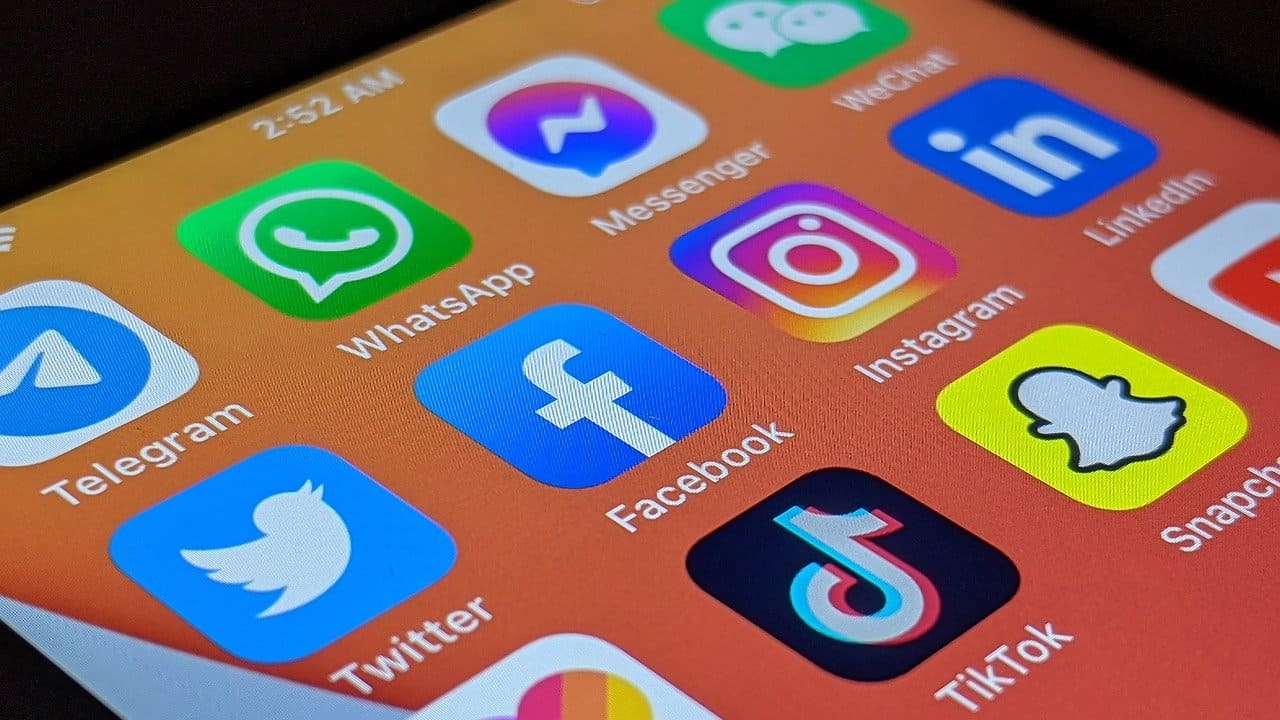
Many people try to "send it to themselves" using whatever messaging app is handy or via email. This approach runs into immediate limits for large files:
- Email: typically 25 MB on services like Gmail. Apple's Mail Drop falls under the same ~5 GB iCloud cap
- WhatsApp: up to 2 GB
- Telegram: up to 4 GB (premium), 2 GB (free)
- iMessage: forces large videos to be trimmed or compressed in practice
These platforms also often compress media by default - meaning that 4K video might be downscaled and blurry on the other end.
Limitations:
- Very small size limits (email ~25 MB; chat apps max out in the 2–4 GB range)
- Automatic compression of photos/videos, resulting in quality loss
- Not suitable for lengthy or high-res videos
- Sending via these methods can be time-consuming only to see a "file too large" error after upload
Bottom Line:
Traditional methods - AirDrop, cables, cloud drives or messaging - all hit a wall when it comes to sending very large files from an iPhone to a PC. They either won't work at all, have strict size limits, or involve tedious multi-step processes. So what's the solution?
The Better Way: Use MoreTransfer for Large Files
MoreTransfer is a file transfer service built specifically to handle huge files across different devices. It was created to overcome the limitations of the traditional methods we discussed. With MoreTransfer, you can take a massive video on your iPhone and send it to your PC (or to someone else's PC) quickly, securely and without any special hardware or software.
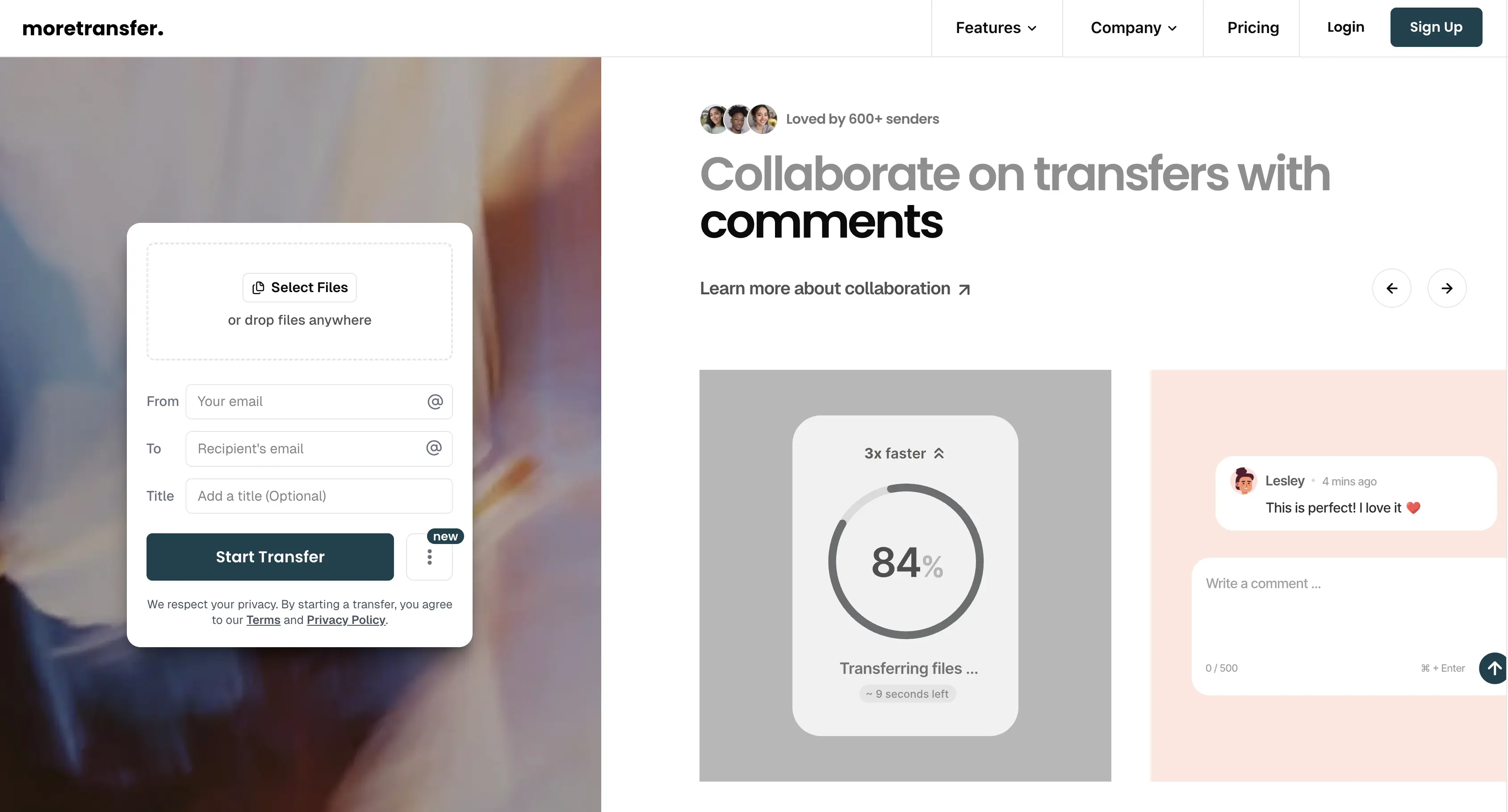
Unlike AirDrop, MoreTransfer works across all platforms - iPhone, Android, Windows, Mac, you name it. It uses your internet connection to move the file, so the devices don't need to be near each other. And unlike email or messaging, MoreTransfer is built for big data - a 10 GB or 20 GB file is perfectly fine.
How it works (No Cables or Apps Needed):
- Open the website on your iPhone: Go to moretransfer.com in Safari or any browser. No app to install.
- Add your large file(s): Select the file(s) you want to transfer - huge videos, batches of photos, anything.
- Send and get the download link: MoreTransfer uploads them securely. Enter an email address to receive the download link and hit Send.
- Download on the PC: Open the email on your Windows PC, click the link and download. No special software needed - just a web browser.
That's it. No iTunes, no USB drivers, no cloud drives. The file arrives in full quality with no compression.
Why MoreTransfer Works Better
| Feature | AirDrop | USB Cable | Cloud Storage | Messaging Apps | MoreTransfer |
|---|---|---|---|---|---|
| Works with iPhone & PC | ❌ | ✅ | ✅ | ✅ | ✅ |
| File Size Limit | ~5 GB | Unreliable | 3–15 GB | 2–4 GB | Up to 2 TB |
| Compression | None | None | Varies | Yes | None |
| Range | 10 m | Cable | Internet | Internet | Anywhere |
| Requires App/Software | ✅ | iTunes/Drivers | ✅ | ✅ | No app required |
| Security | Local only | Local only | Varies | Varies | Password protection, expiring links, region control |
Why users love it ❤️
- No app to install - works right from your browser
- No strict file size limits - send hundreds of gigabytes if needed
- No compression - your 4K video stays 4K, full quality preserved
- Any distance, no proximity required - send files across the room or across the world
- Privacy and security - password-protected links, expiry controls and region selection (EU or North America)
- Optimized for large transfers - resumes interrupted uploads instead of starting over
- Faster uploads - region-specific servers route your data closer to home
FAQ: Can You Transfer Large Files from PC to iPhone Too?
Yes. The same MoreTransfer workflow works in reverse if you need to send large files from a Windows PC to an iPhone.
Open moretransfer.com on your PC, upload the large video, folder or project file, then scan the QR code on your phone or send the download link to yourself or the person using the iPhone. They can open the link in Safari and download the file without installing an app, connecting a cable or compressing the original file.
This is especially useful when a file is too large for email, WhatsApp, iMessage or cloud storage sharing. Instead of syncing the file into a permanent cloud folder, you create a temporary transfer link that can expire automatically.
Conclusion: Effortless Large-File Sharing in 2026
As of 2026, iPhones are capturing ever-larger photos and videos and the need to share large files from your iPhone to a PC is only growing. Relying on old methods like AirDrop, cables, or email can turn a simple file transfer into a nightmare of errors and limitations. If you often work with big media files, tools like AirDrop or WhatsApp will eventually hit their limits.
With MoreTransfer, you can securely send even hundreds of gigabytes from your iPhone to your PC (or any device) with speed and privacy in mind. There are no tricky workarounds or quality compromises - it just works.
Try it now at moretransfer.com - and never worry about file size again.
The simple choice
Send your first transfer tonight
MoreTransfer makes it effortless to send large files fast with a clean, private transfer link. Built for creators, teams, and anyone who values simplicity and control.
No credit card required
More from the blog

7 Video Feedback Tools for Client Review in 2026
A practical comparison of 7 video feedback tools for editors, agencies, creators and teams that need clearer comments, fewer review loops, and easier client approvals.
6 mins read
How to Send Long Videos from iPhone to Android Without Compression
Send large or long videos from iPhone to Android without AirDrop, cables, apps, or compression. Use a private download link instead.
5 mins read

How to Send Large Photo Files to Clients Without Cloud Drive Chaos
Send high resolution photos to clients with one simple link, automatic expiry, and an email reminder when it is time to follow up.
4 mins read